


I’ll be honest with you. I spent three weeks testing AI email extensions so I could write this, and about half of them went straight in the trash. Not because they were bad at generating text — most of them generate decent text — but because they made my actual email workflow slower, not faster.
Extra clicks, weird UI panels sliding in from the side, prompts that needed prompting themselves.
So, everything in this list passed one test: does it get out of the way and let me send better emails faster? That’s it.
| Extension | Best For | Free Plan | Paid Plan | Rating | Works In |
|---|---|---|---|---|---|
| Compose AI | Daily Gmail users, fast drafting | 1,500 words/month | $9.99/month | 4.1/5 | Gmail, Docs, LinkedIn, Outlook |
| Grammarly + GrammarlyGO | Tone control, grammar, rewrites | 100 AI prompts/month | From $12/month | 4.4/5 | Gmail, Docs, 500,000+ sites |
| MailMaestro | Long threads, team email, enterprise | Free trial (full features) | Team pricing | 4.8/5 | Gmail, Outlook |
| Monica | Multilingual email, all-in-one assistant | Limited daily prompts | $9.90/month | 4.6/5 | Gmail, most sites |
| HARPA AI | Email automation, custom workflows | 100 credits/month | $12/month | 4.5/5 | Gmail, any browser page |
Why Bother with These at All?
If you’re someone who sends 30+ emails a day, you already feel the cost — the mental overhead of context-switching, tone-matching, figuring out how to word a tricky follow-up without sounding pushy.
I used to spend about 20 minutes just staring at a blank reply to a vendor complaint before typing anything.
These extensions don’t write your emails for you (well, technically they do, but that framing is wrong). What they actually do is break the inertia. You type three bullet points of what you want to say, and the extension gives you a starting draft. You’re editing, not starting from nothing. That’s the real time save.
Let’s get into it.
1. Compose AI — Best Free Option for Daily Gmail Users
Best for: People who live in Gmail and want something genuinely free that works without fuss.
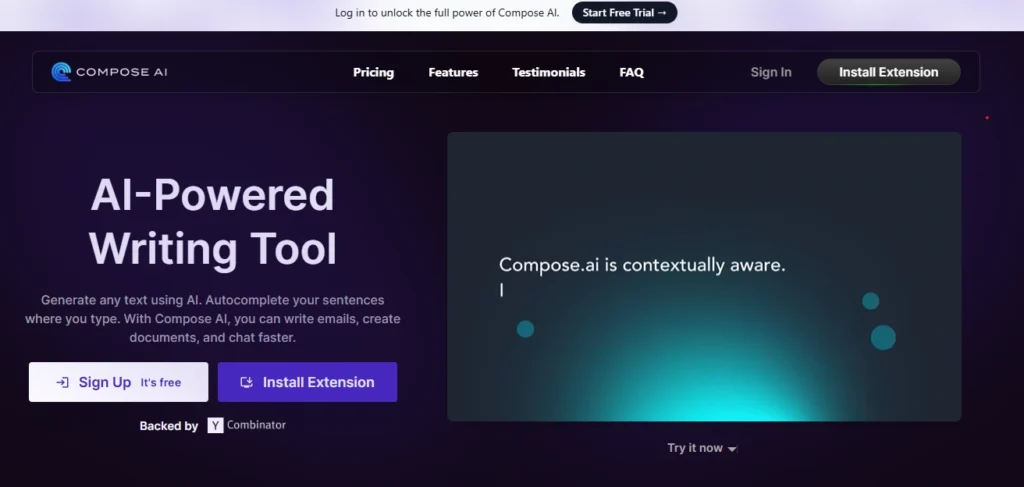
Compose AI sits inside your browser and works across almost any text field — Gmail, Google Docs, LinkedIn, Outlook. The way it works mechanically: it reads what you’re typing and offers autocomplete suggestions in grey text (think Gmail’s Smart Compose, but smarter and with more context). You hit Tab to accept.
The thing I kept coming back to was the // shortcut. Anywhere you’re typing, you hit //, type a quick instruction — “write a follow-up email to a client who hasn’t responded in a week, keep it short and friendly” — and it generates the draft right there. No tab switching, no copy-paste from a separate AI window.
How it actually handles email specifically:
Compose AI can read the email you’re replying to and generate a contextual response with one click. It doesn’t just spit out a generic reply — it incorporates the thread context.
When I tested it on a client complaint email about a delayed shipment, the generated draft correctly referenced the timeline issue and suggested a partial credit, pulling the logic from the original email. I didn’t prompt it to do that; it just did.
It does learn your writing style over time, though “over time” here means weeks of consistent use, not days. Early on, suggestions feel a bit generic. Give it a month and you’ll notice it starting to match your phrasing patterns more closely.
The limitation nobody talks about:
Some users flag that it works better in Gmail than elsewhere. On LinkedIn especially, it can behave inconsistently. For pure Gmail users, this is the cleanest free option out there. The free tier gives you 1,500 words per month, and premium runs around $9.99/month (billed annually) for unlimited use.
Chrome Web Store rating: 4.1/5
2. Grammarly (With GrammarlyGO) — The One That Grew Up
Best for: Professionals who want tone control, not just spell-check.
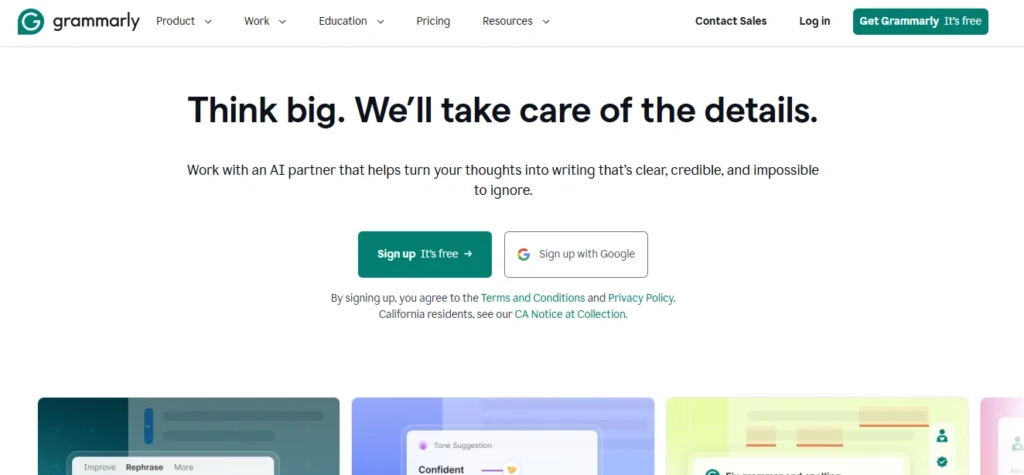
Everyone knows Grammarly. Most people still think of it as a red-underline spell-checker, which was accurate in 2019. The GrammarlyGO layer changes things considerably.
Here’s what changed:
Grammarly now understands context. When you’re in Gmail, it can tell you’re writing a business email — not a tweet, not a Google Doc essay. The tone suggestions adjust accordingly.
I’ve caught myself typing “as I mentioned before” in an email (which reads passive-aggressive, apparently) and Grammarly flags it with a gentler alternative. That specific example? Accurate. I was being passive-aggressive.
How GrammarlyGO works for email specifically:
There’s a green bulb icon inside the extension. You click it and you get options: generate a draft from scratch, rewrite what you have, adjust tone (make it more formal, more casual, shorter, more empathetic).
The “Respond to email” feature is the standout — you write a short note like “decline politely, offer a different date” and it builds the full reply incorporating details from the original email thread.
I tested the complaint-response scenario here too. The result was usable but blander than Compose AI’s output. Grammarly defaults to a safe, corporate neutral that needs a human voice added back in. That’s the trade-off: Grammarly is excellent at cleanup and tone adjustment but less exciting at generation from scratch.
The free plan reality:
You get 100 AI prompts per month free, and the limit resets monthly. For light email use, that’s plenty. The Pro plan starts at $12/month and unlocks full features including the better audience-tailored suggestions. Worth noting: Grammarly was acquired by Superhuman in 2025 and is now bundled into a broader productivity suite.
Chrome Web Store rating: 4.4/5
3. MailMaestro — For People Dealing With Long Email Threads
Best for: Teams, managers, and anyone drowning in email chains that span 20+ messages.
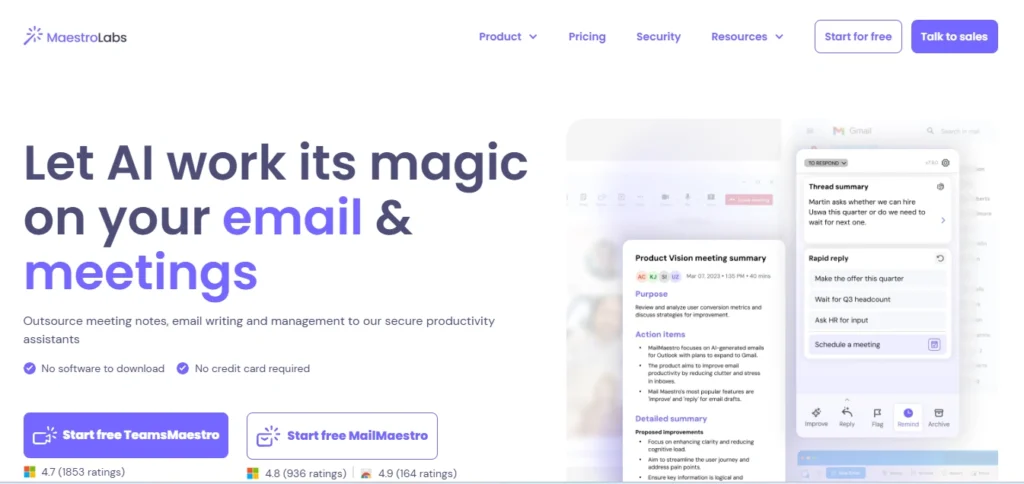
This one solves a specific problem that most other extensions ignore: long threads. When a client conversation has gone back and forth 15 times over two weeks and you need to reply, you don’t want to re-read the whole thing.
MailMaestro summarises the entire thread into 3-4 bullet points before suggesting a reply. That single feature alone justified the install for me.
How it works mechanically:
Install the Chrome extension, connect your Gmail, and a MailMaestro panel appears in your inbox. Open any email thread, click “Summarise,” and you get a concise breakdown of what’s been discussed, what’s outstanding, and what the last action was.
Then click “Reply with AI,” drop in a couple of words about your intent, and it generates three different draft options. You pick the closest one and edit.
The three-draft-options approach is clever. Instead of one output that you either like or rewrite, you get three variations at different lengths or tones and you pick the starting point that’s closest to what you want.
This actually matches how we naturally draft emails — you write one version, hate it, try again, get closer. MailMaestro compresses that loop.
The privacy angle matters here:
MailMaestro is SOC2 Type II compliant and anonymises sensitive data (names, dates, purchase info) before sending it to the underlying LLMs (they use GPT-4o and Claude 3.5).
For anyone using this in a professional context with client data, that’s not a minor detail. Many extensions just ship your email text straight to an API with no sanitisation. MailMaestro doesn’t.
Caveat: The extension requests access to your browsing history, which some users flag as excessive. Make your own call on that. Pricing features a free trial with full tools. Paid plans vary by team size, but it’s positioned at the enterprise end.
Chrome Web Store rating: 4.8/5
4. Monica — Best All-Rounder If You Want AI Beyond Just Email
Best for: People who want one extension that handles email and everything else — summaries, research, translations, content.
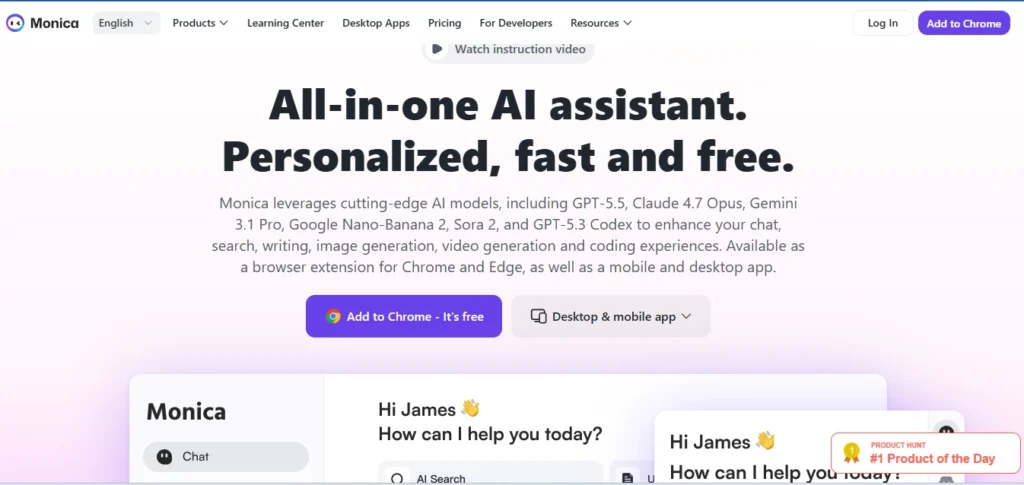
Monica is interesting because it’s not specifically an email tool, but it ends up being one of the best ones in practice. It’s a sidebar AI assistant powered by multiple models (GPT-4, Claude, Gemini — you can switch between them).
For email specifically, you open an email in Gmail, open Monica’s sidebar, and tell it to summarise or draft a reply. It reads the email and responds in context.
What makes Monica stand out for email over something like Compose AI is the multilingual ability. If you’re working with international clients and occasionally need to reply in Spanish or Japanese or French, Monica handles this without you needing a separate translation step.
The workflow that actually works:
I’ve been using Monica mostly for cold outreach responses. Someone sends me a business email in formal Spanish. I open Monica, click “summarise this email,” get the key points in English, type my reply intent in English, and tell Monica to generate the reply in Spanish, formal tone. Done in under two minutes.
Where it’s less ideal: Monica tries to do a lot — browsing assistance, YouTube summarisation, PDF analysis — which means the UI has more buttons than you might want for pure email use.
If you only want an email tool, Monica is overkill. If you want email plus a general AI assistant that lives in your browser, it earns its keep quickly.
Pricing: Limited prompts daily on the free plan. Premium runs around $9.90/month.
5. HARPA AI — For the Automation-Minded Person
Best for: People who want to automate repetitive email tasks and connect email to broader workflows.
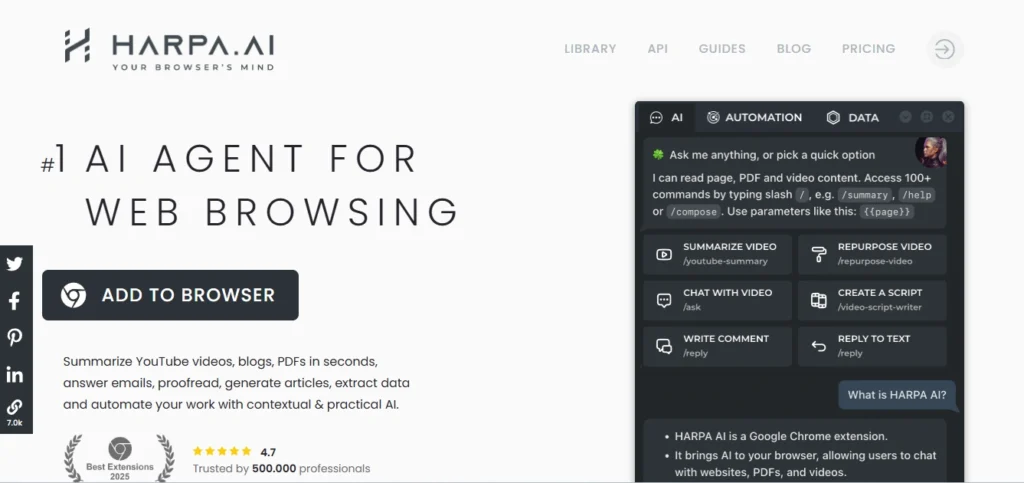
HARPA is different from everything else on this list because it’s less about drafting individual emails and more about automating patterns around email. It’s a hybrid AI agent — it combines LLMs with browser automation, which means it can do things the others can’t.
Concrete example: I set up HARPA to monitor a supplier’s website for price changes and draft me a quick email alert with the new pricing included. No manual checking, no copy-pasting numbers. The email draft is ready when I open Chrome in the morning. That’s not something you’d do with Grammarly or Compose AI.
For email specifically:
HARPA works inside Gmail and can generate replies, but its real strength is the slash-command system. You type /reply in Gmail to generate an AI-suggested response, /summarise to get a thread summary, or build your own custom commands.
If you have email tasks you do every day in the same pattern — like responding to vendor quotes with a specific format — you can create a custom HARPA command that does the whole thing in one shortcut.
How the tech works under the hood:
HARPA connects to OpenAI, Claude, Gemini, or other models via API. You can bring your own API key if you have one, which is both cheaper for heavy users and more private (your data goes to the model provider directly, not through HARPA’s servers). It stores no user data and is GDPR compliant.
The learning curve is real: HARPA takes more setup than any other extension here. If you want it to do something specific, you need to write a custom command or template. Pricing includes a free tier with 100 credits/month. The S1 plan is $12/month.
How to Actually Pick One
- If you’re starting out and don’t want to think about it: Install Compose AI. Free, works in Gmail immediately, and the
//shortcut is genuinely the fastest way to get a first draft. - If you’re a professional writing lots of client emails: Grammarly’s GrammarlyGO layer does tone adjustment better than any of the others.
- If your biggest problem is long email threads: MailMaestro’s summarisation feature will save you time every single day.
- If you work across languages or want a broad assistant: Monica is the one.
- If you want to automate workflows: HARPA rewards the setup time.
One practical note: Try not to install all five at once. Chrome extensions stack up their memory use, and having too many AI extensions active simultaneously will slow your browser noticeably. Pick two that match your actual workflow, use them for two weeks, and only then add a third if you feel a gap.
A Note on Privacy (You Should Actually Read This Part)
Every extension on this list accesses your email content to function. That’s not avoidable — it’s how they work. But what happens to that content varies significantly.
MailMaestro anonymises data before it reaches any LLM. HARPA stores nothing and lets you use your own API key. Grammarly has detailed privacy policies but has faced scrutiny in the past over data practices — check their current policy if you’re handling sensitive client information.
Compose AI states user data is used only to improve autocomplete and not sold to third parties.
For personal email use, most of this is fine. For corporate or client email with confidential information, I’d prioritise either HARPA (self-hosted API key) or MailMaestro (SOC2 compliant) and double-check whatever your company’s IT policy says about browser extensions accessing email.