

I’ve spent more hours than I’d like to admit uploading PDFs to AI tools, running the same 40-page research report through five different platforms, and writing down what came back. This isn’t a roundup based on feature pages and press releases.
I ran the same test documents — a dense academic paper, a legal contract, a 90-page annual report, and a product spec sheet — through each tool and tracked what broke, what surprised me, and where each one earns its place.
Let me save you that time.
Why PDF Summarization Is Harder Than It Sounds
Most people assume “upload PDF, get summary” is a solved problem. It’s not.
PDFs are structurally inconsistent. A scanned contract from 2008 is a fundamentally different object than a native-digital annual report. Tables inside PDFs are rendered as images in a lot of tools. Multi-column layouts confuse extraction logic.
Footnotes get merged into body text. Headers get eaten. And if you’re working with technical documents, the nuance that matters — the stuff buried in paragraph three of section 6.2 — often gets flattened into generic sentences.
The tools below handle these problems at different levels of sophistication. That’s the real differentiator, not the chat interface or the pricing page headline.
Side-by-Side Comparison
| Tool | Best Document Type | Context Window | OCR Support | Citation Output | Multi-Doc Analysis | Starting Price |
| Claude | Long contracts, research papers, technical docs | 200K tokens | No (text PDFs only) | No built-in | Good | Free / $20 Pro |
| ChatGPT GPT-4o | General documents, mixed-format PDFs | 128K tokens | Limited | No built-in | Moderate | Free / $20 Plus |
| Gemini 1.5 Pro | Multi-document, large volume analysis | 1M tokens | Yes | No built-in | Excellent | Free / $19.99 Adv. |
| Adobe Acrobat AI | Legal, compliance, citation-required work | Per document | Yes | Yes (page-level) | Limited | $4.99/mo add-on |
| Notion AI | Team knowledge, internal docs, meeting notes | Limited | No | No | Within workspace only | $10/member/mo |
The 5 Tools I Tested
1. Claude (Anthropic)
Best for: Long documents, nuanced analysis, contracts, research papers
I uploaded a 94-page pharmaceutical regulatory document to Claude. What came back wasn’t a list of bullet points telling me the document “covers regulatory requirements and submission procedures.”
Claude pulled out the specific approval pathway mentioned in section 4, flagged the conditional clause in the safety monitoring section, and identified a definitional inconsistency between two sections — something I’d missed on my own read.
That’s what separates Claude from most tools in this category. It doesn’t just compress the document. It reads it in a way that surfaces things you’d catch on a close third read.
The context window is genuinely useful here. With a 200K token window, Claude handles book-length documents without chunking artifacts.
You don’t get the weird mid-document amnesia you see in tools that slice and stitch—a common limitation rooted in how AI memory works.
One honest limitation: Claude doesn’t have native OCR for scanned PDFs. If you’re working with image-based documents, you’ll need to run OCR separately before uploading. It also doesn’t have a built-in document management system — everything is session-based unless you’re using the API with your own infrastructure.
What I noticed: When I asked it to compare two versions of a vendor agreement, it caught that the liability cap had changed from “gross negligence” to “willful misconduct” — a materially significant difference. That’s the kind of output that actually moves work forward.
2. ChatGPT with GPT-4o (OpenAI)
Best for: General summarization, broad document types, mixed media PDFs
GPT-4o is probably the most familiar interface for most people doing this kind of work. It is capable and handles a wide range of document types reasonably well, though it has distinct differences when evaluating Claude 3.5 Sonnet vs. ChatGPT-4o for highly technical reading.
I tested it with the same pharmaceutical document. The summary was accurate but more surface-level.
It captured the main themes correctly, but when I asked follow-up questions about specific sections, the responses were occasionally imprecise — pulling from general medical knowledge rather than the exact language in the document.
Where GPT-4o does better than some competitors is with mixed-format PDFs. I uploaded a product catalog that had embedded images, spec tables, and narrative copy mixed together. It handled the structural variety without completely losing the thread.
The Code Interpreter integration (now called Advanced Data Analysis) is worth mentioning separately. If you need to extract structured data from a PDF — pull every figure from a financial report into a spreadsheet, for instance — that workflow genuinely works well.
You can feed it a 60-page earnings report and get the revenue figures pulled into a table with a few prompts.
What I noticed: It struggled with heavily formatted documents where the visual layout carried meaning. A two-column legal brief came back with the columns merged in a way that made the analysis confusing. That said, for more standard document types — research papers, business reports, straightforward contracts — it’s solid.
3. Gemini 1.5 Pro (Google DeepMind)
Best for: Very long documents, multi-document analysis, Google Workspace users
The headline feature here is the context window — Gemini 1.5 Pro handles up to 1 million tokens, which means you can feed it multiple large documents at once and ask comparative questions across them.
I didn’t have many use cases that pushed past Claude’s 200K window in practice, but if you’re doing competitive intelligence work across 10 annual reports simultaneously, that capacity is genuinely useful.
I tested Gemini with the same core documents. The summarization quality is good — not dramatically different from Claude or GPT-4o at the individual document level — but the multi-document synthesis is where it pulls ahead.
I uploaded three versions of the same contract across three fiscal years and asked it to identify what changed. The output was structured and accurate.
For Google Workspace users, the integration is seamless. Documents in Drive can be fed directly without download-upload loops, which saves more time than it sounds.
What I noticed: On single-document, deep-analysis tasks, I found Claude’s outputs more precise. Gemini’s strength is breadth and volume rather than depth. For high-stakes single documents where nuance matters, I’d use Claude. For “give me the landscape across 12 documents,” Gemini earns its place.
4. Adobe Acrobat AI Assistant
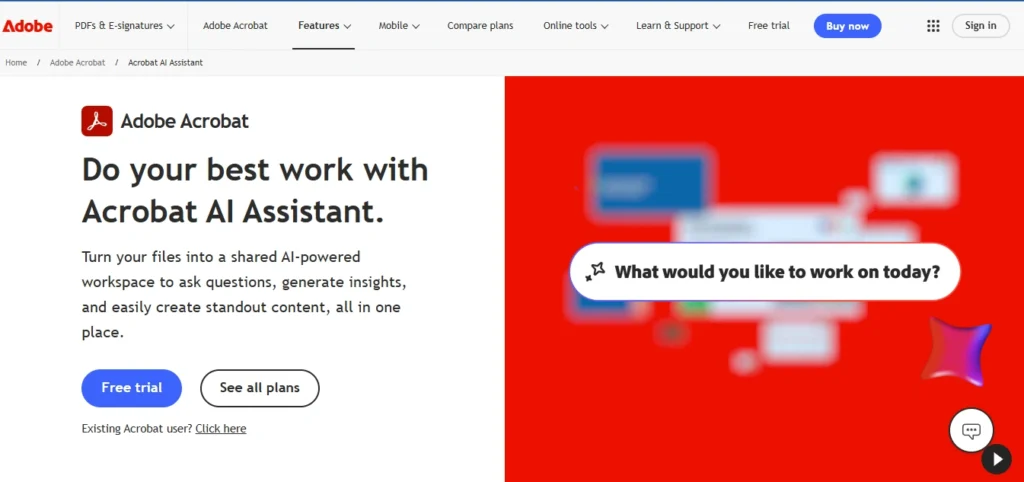
Best for: Professional document workflows, citation-heavy analysis, teams using Acrobat
Adobe’s entry here is aimed squarely at professional document workers, and it shows in the design choices. When you ask a question about a document, Acrobat AI Assistant doesn’t just answer — it cites the exact page and section the answer came from.
For anyone who needs to verify outputs or defend their analysis, that’s not a nice-to-have, it’s essential.
I ran my legal contract through it. The summary came back organized by document section, with each point linked back to the source language. When I asked about indemnification obligations, it returned the specific clause with the page reference. I could verify in seconds.
The trade-off is flexibility. Acrobat AI Assistant is tightly scoped to the document in front of you. It doesn’t do the kind of cross-document reasoning or open-ended analysis you’d get from Claude or Gemini.
It’s also priced as a premium add-on that works best if you’re already in the Adobe ecosystem, which is an important factor to weigh when auditing the hidden cost of AI in business.
What I noticed: For paralegal work, compliance review, or any context where you need to prove where an answer came from, this tool’s citation behavior is the best I tested. For general knowledge workers, the specialization may be more than you need.
5. Notion AI
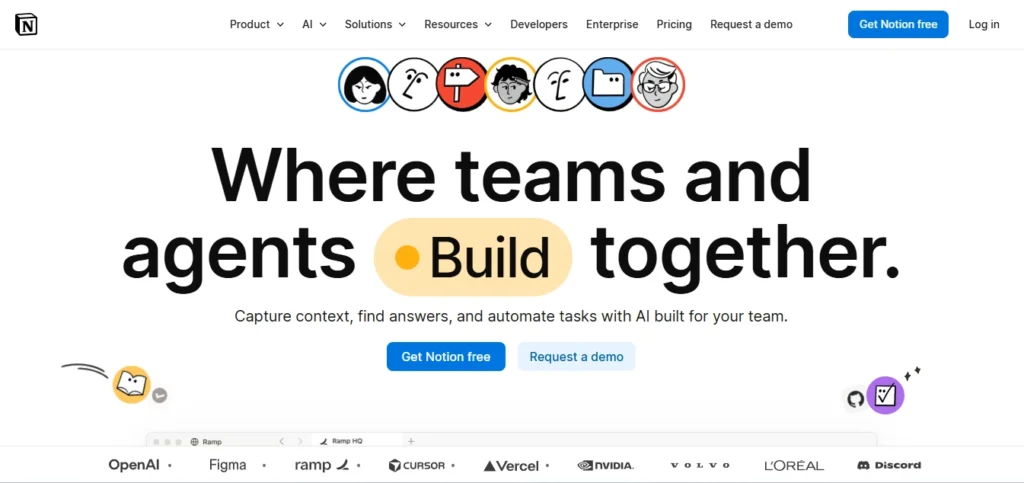
Best for: Teams using Notion, meeting notes, internal documents, knowledge management
Notion AI sits in a different category from the other four. It’s not a standalone PDF analysis engine — it’s a document intelligence layer built into a workspace. That context matters a lot when you’re evaluating it.
What Notion AI does well is document processing in the context of team knowledge management, demonstrating exactly how AI won’t replace your team — but it will replace your workflow.
You can paste in a PDF summary, connect it to a project, and have the AI work across your existing workspace content to answer questions. “What do our customer interviews say about this feature, and how does it compare to what’s in this product spec?” — that kind of cross-context reasoning within your Notion workspace is where it shines.
For raw PDF analysis, it’s limited. It doesn’t handle large PDFs natively, and the summarization quality on complex documents doesn’t match the dedicated tools above. But if you’re already running your team’s knowledge in Notion, the integration value adds up quickly.
What I noticed: The real use case here isn’t “analyze this document” — it’s “connect this document to everything else my team knows.” If that’s your workflow, Notion AI earns its place. If you’re primarily doing document analysis as a standalone task, the other four tools are better suited.
How to Pick the Right One
The honest answer is that the “best” tool depends almost entirely on what you’re analyzing and what you need to do with the output.
- If you’re working with complex single documents — contracts, regulatory filings, research papers — where the depth of analysis matters and you’re asking follow-up questions, Claude is what I’d use. The reasoning quality on nuanced documents is noticeably higher.
- If you need to process multiple large documents at once and compare across them, Gemini’s context window is the practical choice. That capacity advantage is real and it shows in multi-document tasks.
- If you’re in a professional environment where citation and verification are non-negotiable — legal, compliance, finance — Adobe Acrobat AI’s source-linking behavior is worth the additional cost. The other tools expect you to verify outputs yourself.
- If your primary use case is connecting document content to your team’s existing knowledge base and you’re already in Notion, the integration value justifies staying there.
- ChatGPT sits comfortably in the middle — broadly capable, widely familiar, handles most document types reasonably well. It’s the safe default if you don’t have a specific use case pulling you toward one of the others.
A Note on What None of Them Do Well
No tool I tested handled scanned, image-based PDFs reliably without pre-processing. If your documents are scans rather than native-digital PDFs, run OCR first — Adobe Acrobat, Google Drive, or a dedicated OCR tool.
Feeding a scanned document to most of these tools without OCR results in poor extraction quality, regardless of which AI is behind the interface.
Tables inside PDFs are also a consistent weak point across the board. If the table data matters, verify it manually. Don’t trust extracted figures from complex tables without checking the source.
And context length claims aside—something we’ve explored previously regarding the token trap and the illusion of “unlimited context”—more tokens doesn’t automatically mean better analysis.
A tool that genuinely reads and reasons over 200K tokens well beats one that technically accepts 1M tokens but starts losing coherence past 100K. Test with your actual documents before committing to a workflow.