

Most write-ups on using Claude for data science (especially when comparing Claude 3.5 Sonnet vs. ChatGPT-4o) stop at the obvious stuff: ask it to write code, ask it to explain an error, done. That undersells what’s actually available.
Claude splits into a few distinct modes Chat, Research, Design, and Code and each one is genuinely built for a different kind of task rather than being the same assistant wearing a different skin.
Once you start matching the mode to the job instead of defaulting to whichever tab is already open, a lot of the repetitive parts of the role get noticeably shorter. Here are four ways to do that.
Quick comparison
| Skill | What It’s Actually For | Where to Find It | One Thing to Watch |
| Deep Research | Comparing modeling approaches with cited sources | The “+” button, then select Research | Double-check sources; it will pull from blogs, not just papers |
| HTML project briefs | Explaining a technical project to non-technical stakeholders | Regular Claude chat | Keep the prompt specific about timeline and open questions |
| Claude Design | Slide decks, invoices, resumes, anything where layout matters | The Design tool (paint palette icon) | Use the built-in Edit button for small fixes instead of re-prompting |
| Claude Code for docs | Generating READMEs and documentation from existing code | Claude Code CLI | Output is only as accurate as the code it’s reading |
Deep Research for comparing modeling approaches
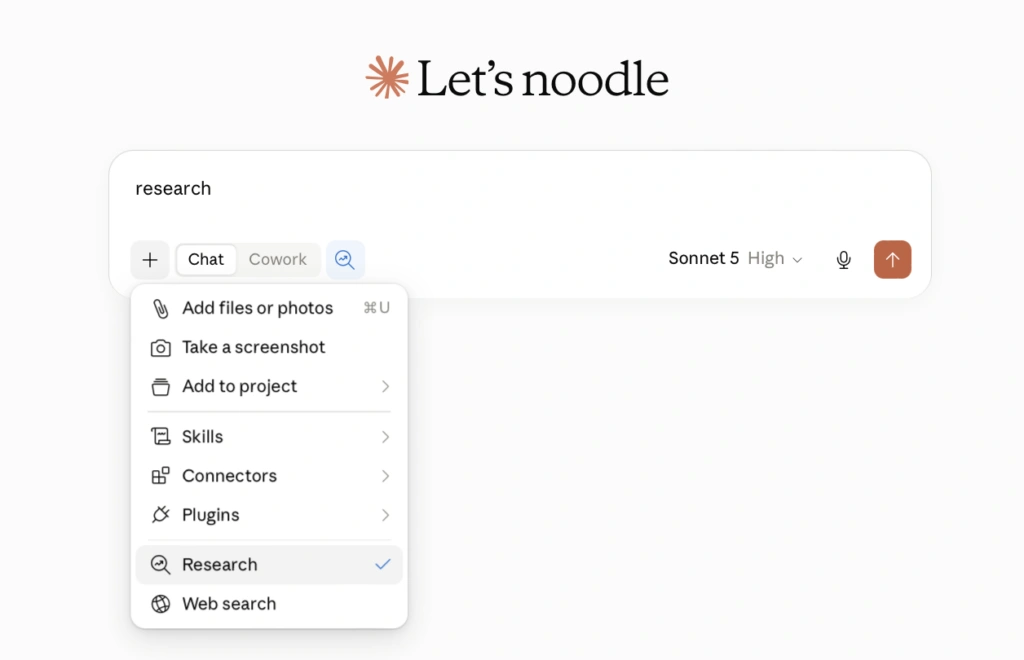
Claude draws information from three primary sources: training data, single web searches, or Research mode. Research mode runs a sequence of connected web queries. Each search builds on the previous result to produce a comprehensive report with citations.
You must enable both web search and Research mode before running queries. If Claude skips Research on a complex technical prompt, explicitly tell it to use the research tool.
This workflow accelerates complex architecture decisions. For instance, you can evaluate whether to rebuild a forecasting pipeline or keep an existing gradient boosting model.
Prompt Claude to compare classical statistical baselines, gradient boosting, and transformer architectures. Request specific evaluations of accuracy, compute costs, data requirements, and common failure modes.
Claude returns a structured breakdown complete with trade-offs and practical recommendations. Always review the citations carefully. Research mode pulls from engineering blogs and forums unless you explicitly restrict results to peer-reviewed benchmarks.
HTML project briefs for stakeholders
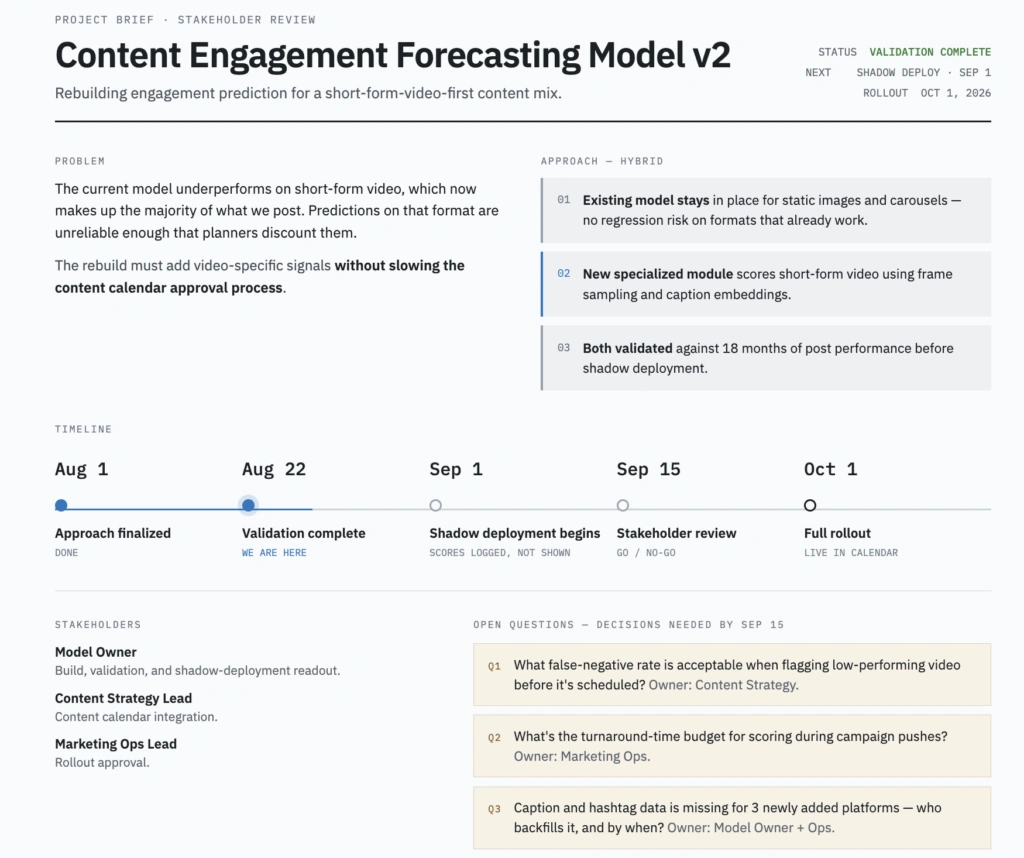
Non-technical stakeholders rarely want raw metrics or dense implementation details. They want to know what broke, the remediation plan, and the expected delivery date. Claude turns raw project notes into clean, single-page HTML briefs. These interactive briefs convey progress much better than slide decks or lengthy emails.
Provide specific structural constraints in your prompt to get the best output. Summarize the business problem in plain English. Outline the technical approach in a concise paragraph.
Include target delivery dates, primary stakeholders, and unresolved blocker items. Finally, instruct Claude to generate a visual timeline constrained to a single scannable page. This pattern produces clean executive summaries in minutes.
Claude Design for stakeholder slide decks
Claude Design serves as a specialized tool for visually structured assets. Use it to build slide decks, wireframes, dashboard mockups, and status reports. Standard chat interfaces frequently produce broken alignment and awkward text wraps. Anthropic tuned the Design workspace specifically to resolve these visual layout issues.
To use it, open Design via the paint palette icon and select the Slides template.
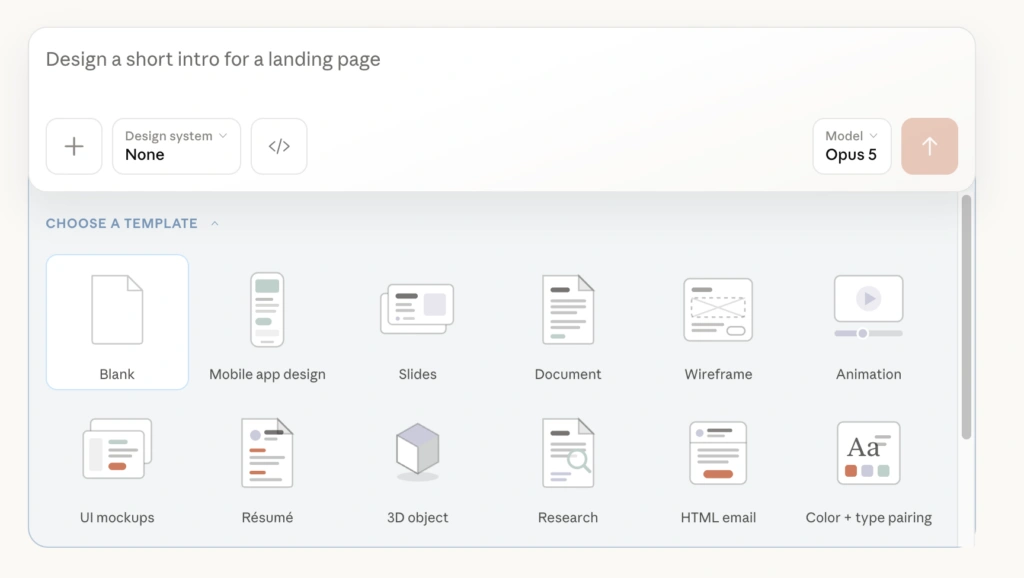
Pick an established design system, then structure your prompt like a design brief:
- Keep one clear concept per slide
- Limit text blocks and emphasize key numbers
- Focus on core metrics rather than technical minutiae
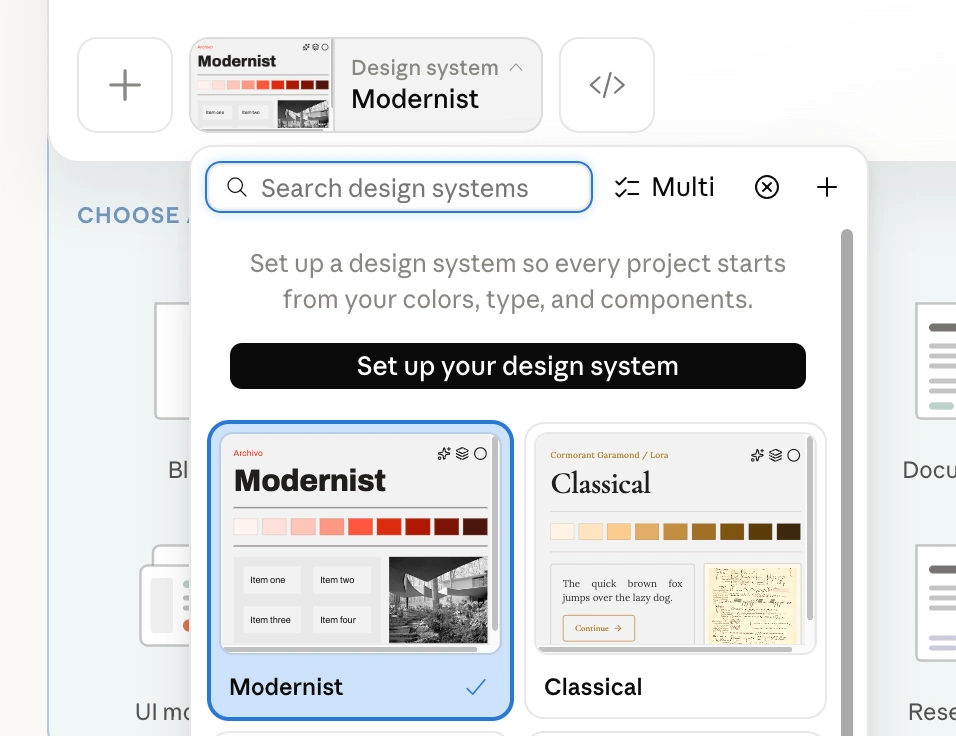
A concise three-slide structure works reliably for monthly reviews: a title slide, a performance metrics summary, and an upcoming milestone roadmap.
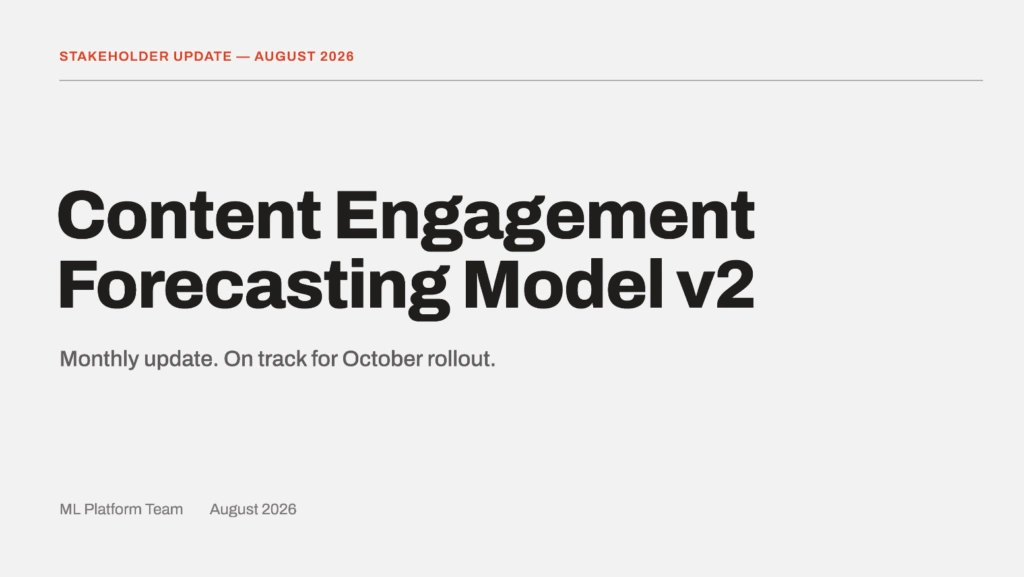
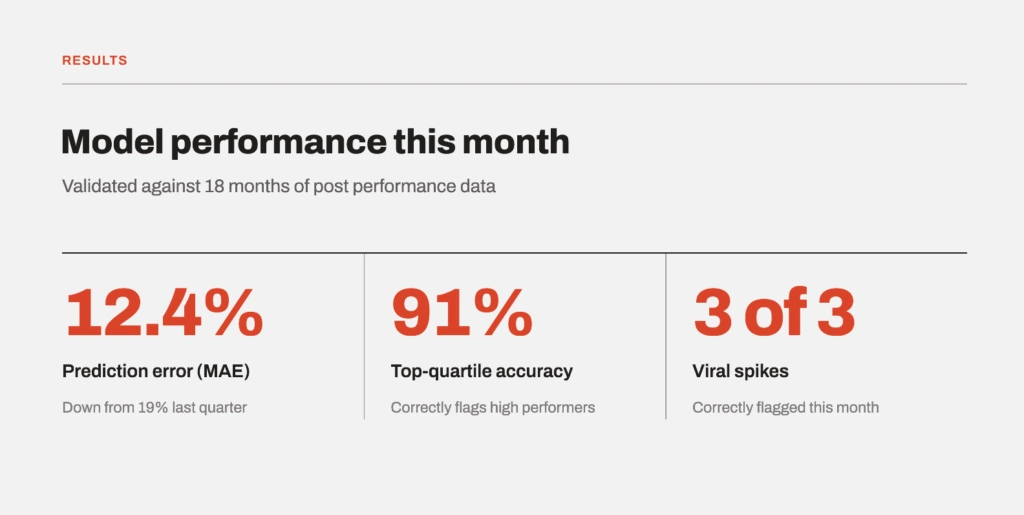
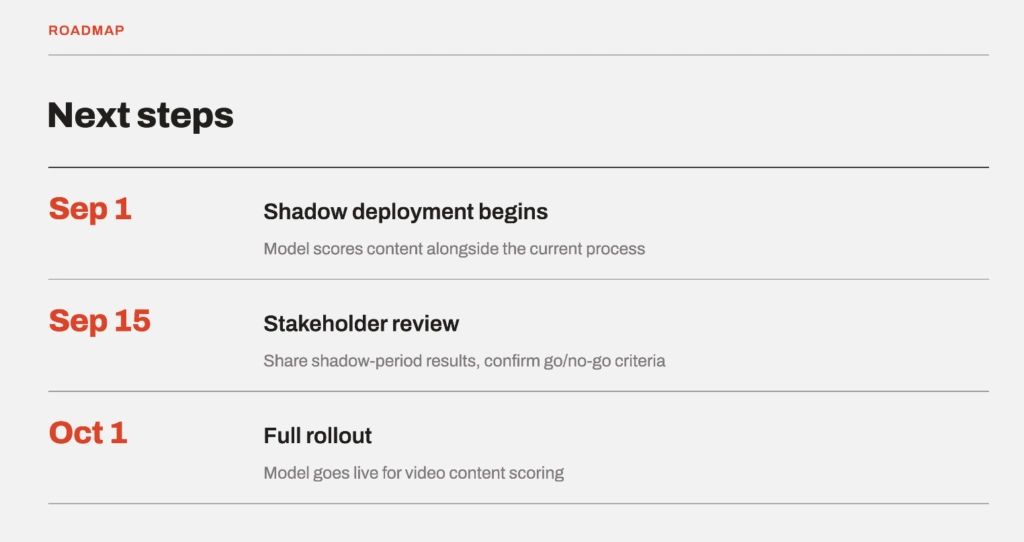
Use the built-in Edit button in the upper-right corner to adjust layout details directly without wasting tokens on re-prompts.
Claude Code for documentation and READMEs
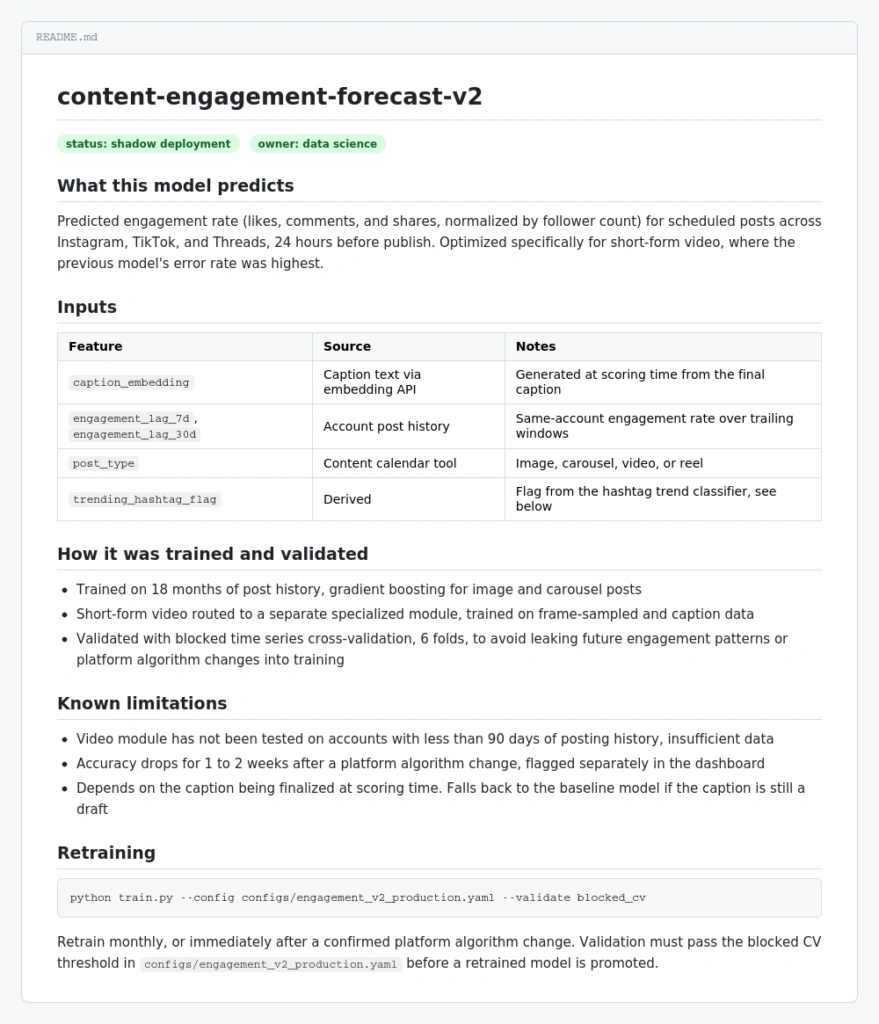
Documentation is the part of finishing a project everyone puts off, and it’s exactly the kind of task Claude Code handles exceptionally well, making it one of the 7 best AI coding assistants for developers right now.
When documenting a newly trained model, instruct Claude Code to analyze the training pipeline and evaluation notebooks. Direct it to generate a production README containing:
- Target prediction objectives and performance baselines
- Feature schemas and data source dependencies
- Training, validation, and evaluation procedures
- Known data edge cases and failure modes
- Exact terminal commands to load, test, and retrain the model
Remember that Claude Code bases its summaries directly on your repository contents. Maintain clean source code to ensure accurate, complete documentation.
Treat Chat, Research, Design, and Code as four distinct tools rather than a single general assistant. Choosing the correct mode for each stage of your data science workflow will save hours of manual editing.
Source: Towards Data Science, "4 Claude Skills Every Data Scientist Needs in 2026"